
How I Use Thinkwell Homeschool in My Planner: Time Saver
The Savvy Homeschooler
5/22/20262 min read
Why I Like Using Curriculum Resources
One feature I use a lot is the Curriculum Resources section in the planner. I know it’s optional, but for me it ends up saving time because I can keep everything connected in one place instead of hunting things down over and over again.
For Thinkwell Algebra 2, I already had:
the course images
the pacing information
the Google Sheets lesson list
planning notes
course links
all connected directly to the curriculum resource.
So when I create the course page, most of what I need is already there.
I also like that the course cover and icon can pull right from the curriculum resource. It just makes everything look cleaner and easier to identify when I’m moving quickly through planning.
Using ChatGPT Plus and Google Sheets Together
This is honestly one of my favorite time-saving methods.
In the video, I explained that I took Thinkwell’s pacing guide information, brought it into ChatGPT Plus, and had it format the lessons the way I wanted for Google Sheets.
After that, I could simply copy the lesson list from Google Sheets and bulk paste it directly into the planner.
Instead of typing lessons one at a time, I can usually get an entire month planned out very quickly.
That has been especially helpful with larger courses.
I also like using Google Sheets because it makes sequential lesson creation easier. Even if I’m just doing something simple like “Day 1,” “Day 2,” and so on, Google Sheets can autofill the sequence instead of me typing everything manually.
Planning a Month at a Time Works Better for Me
One thing I mentioned in the walkthrough is that I usually only add lesson rows a month at a time.
I’ve found that works better for our homeschool because life happens. If I schedule too far ahead and something changes, then I end up having to redo a lot of work.
So instead, I plan in smaller sections and adjust as needed.
The planner also makes it pretty easy to shift lessons forward if there’s a holiday or school break. In the video, I showed how I bumped assignments forward around Memorial Day while still keeping everything aligned with the student’s Monday through Friday schedule.
That’s one feature I’ve really appreciated because it helps keep the course organized without manually redoing every date.
Final Thoughts
I know every homeschool family plans differently, but for me, combining Thinkwell Homeschool with the Curriculum Resources section of the planner, along with ChatGPT Plus and Google Sheets, has made course setup much faster and easier to manage.
Once the initial setup is done, I can reuse a lot of the work year after year instead of starting over every time.
And honestly, anything that helps simplify homeschool planning while still keeping good records is worth it to me.
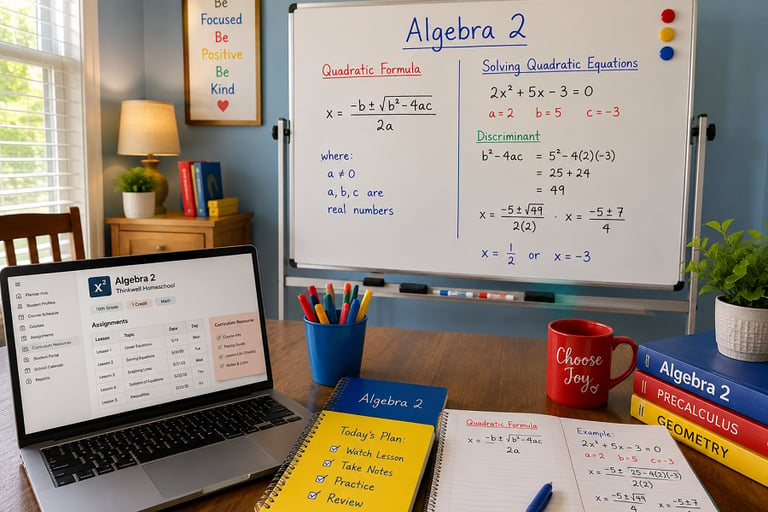
One thing I really appreciate about using Thinkwell Homeschool in our homeschool is how easy it is to fit into an organized planning system. I recently did a walkthrough showing how I set up Thinkwell Algebra 2 inside my planner for a 10th grade student, and honestly, once everything is connected properly, it saves a lot of time later on.
For this setup, I first connected the student profile, added the course schedule, and then matched the course to the student’s time block. One thing I really like is that once the schedule is attached correctly, the planner automatically follows those days when creating lesson dates. So if the course is Monday through Friday, it skips weekends automatically.
That may sound small, but when you’re planning multiple kids and multiple courses, little things like that really help.

Contact
Newsletter
support@thesavvyhomeschooler.com
© 2024. All rights reserved.